

Calls
Outbound calls from your own Twilio numbers
Connect your Twilio account, import the numbers you already own, and have an assistant call people from them through the API or the dashboard.
Your assistant can place phone calls from numbers that live on your own Twilio account. You connect the account once, import the numbers you want to call from, and start each call with POST /calls. Twilio bills the calls to your account directly, at your Twilio rates.
The reference for every endpoint on this page is in the Calls API, the Phone Numbers API and the Integrations API.
Overview#
Once the person picks up, the call works like an inbound one. The assistant uses its usual prompt, voice, tools, transfers and webhooks. A few things are specific to calling out:
- The numbers stay yours. OnCore reads them from your Twilio account and never changes, moves or releases them. They keep whatever inbound routing you already have on Twilio.
- Twilio bills you directly. The calls run on your Twilio account, so the telephony appears on your Twilio invoice. OnCore does not charge for the telephony on these calls.
- Optional voicemail detection. Turn it on per call and, when an answering machine picks up, the assistant hangs up without speaking and the call ends as not answered.
- Each call can carry its own context. A greeting, prompt variables, extra prompt sections, a replacement prompt, a different set of tools, and your own metadata can all be set for one call.
| Method | Path | Purpose |
|---|---|---|
| PUT | /integrations/twilio | Connect your Twilio account |
| POST | /integrations/twilio/test | Check the stored or supplied credentials |
| DELETE | /integrations/twilio | Disconnect your Twilio account |
| GET | /phone-numbers/import/search | Search the numbers on your Twilio account |
| POST | /phone-numbers/import | Import one of them |
| POST | /calls | Place an outbound call |
| GET | /calls/{id} | Follow the call and read its outcome |
Prerequisites#
- A Twilio account of your own with at least one voice-capable phone number on it.
- Elastic SIP Trunking available on that Twilio account. Connecting creates a trunk there, and an account that cannot have one is refused.
- An assistant, and an API key for the same tenant you connect Twilio in.
Connect your Twilio account#
You need two values from the Twilio console: the Account SID (it starts with AC) and its Auth token.
curl -X PUT https://core-api.heysadie.ai/integrations/twilio \
  -H "Authorization: ApiKey YOUR_API_KEY" \
  -H "Content-Type: application/json" \
  -d '{
    "accountSid": "ACxxxxxxxxxxxxxxxxxxxxxxxxxxxxxxxx",
    "authToken": "YOUR_TWILIO_AUTH_TOKEN"
  }'
OnCore checks the pair with Twilio before saving anything. Then it creates one Elastic SIP trunk on your account, named Oncore outbound followed by your tenant ID, with a credential list that only OnCore uses. Your calls leave through that trunk. No phone number is attached to it and nothing else on your account changes, so your numbers' inbound routing is untouched.
The response is the integration: provider, status (connected), connectedAt and your accountSid. The auth token is stored encrypted and is never returned by any endpoint. Send the same request again to replace it.
| Status | Code | Cause |
|---|---|---|
400 | VALIDATION_ERROR | The Account SID is not AC followed by 32 hex characters, or Twilio rejected the Account SID and auth token. Nothing was saved. |
502 | TWILIO_SIP_TRUNK_FAILED | Twilio accepted the credentials but would not create the trunk, usually because Elastic SIP Trunking is not available on the account. The message carries Twilio's reason. Nothing was saved. |
502 | PROVIDER_UNAVAILABLE | Twilio could not be reached to check the credentials. Nothing was saved; try again shortly. |
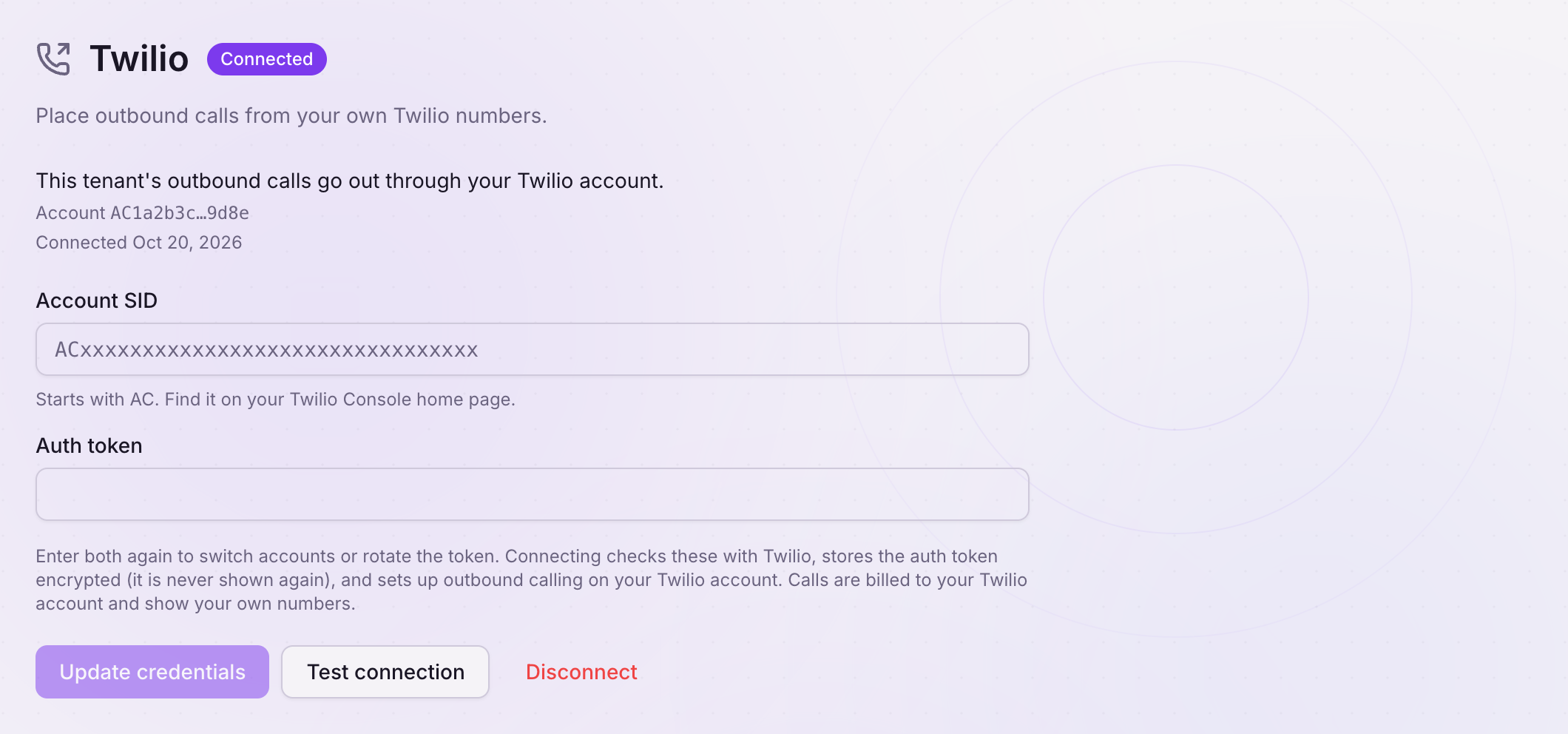
In the dashboard, open Platform, then Integrations, then Twilio, and enter the same two values. Once connected, the page shows the Account SID with all but its last characters masked, plus buttons to test, update or disconnect.
Testing and rotating the auth token#
POST /integrations/twilio/test with no body checks the stored credentials against Twilio. With both accountSid and authToken in the body, it checks that pair without saving it. Sending only one of the two is a 400.
If you rotate the auth token in Twilio, searching and importing numbers fail with 409 TWILIO_CREDENTIALS_REJECTED until you send the new token with PUT /integrations/twilio. Calls keep working in the meantime, because they authenticate with the trunk's own credential rather than your auth token. Reconnecting reuses the trunk it made before.
Disconnecting#
DELETE /integrations/twilio (or Disconnect in the dashboard) deletes the stored auth token and removes the trunk and its credential list from your Twilio account. Your phone numbers, and everything else on the account, are left as they are. If Twilio no longer accepts the stored token, the trunk stays on your account and a later connect reuses it; you can also delete it yourself in the Twilio console.
After a disconnect, POST /calls returns 409 TWILIO_NOT_CONNECTED. Imported numbers stay listed in OnCore and work again as soon as you reconnect.
Import a number#
Search your Twilio account by any run of digits in the number, then import one result by its SID.
curl "https://core-api.heysadie.ai/phone-numbers/import/search?q=5550100" \
  -H "Authorization: ApiKey YOUR_API_KEY"

curl -X POST https://core-api.heysadie.ai/phone-numbers/import \
  -H "Authorization: ApiKey YOUR_API_KEY" \
  -H "Content-Type: application/json" \
  -d '{ "sid": "PNxxxxxxxxxxxxxxxxxxxxxxxxxxxxxxxx" }'
q takes 3 to 15 digits and matches them anywhere in the number. Spaces, dashes and a leading + are ignored. The search returns up to 20 numbers in data.data, and data.hasMore is true when more matched, so narrow the digits rather than paging.
{
  "success": true,
  "data": {
    "data": [
      {
        "sid": "PNxxxxxxxxxxxxxxxxxxxxxxxxxxxxxxxx",
        "phoneNumber": "+15555550100",
        "friendlyName": "Appointments line",
        "voice": true,
        "state": "available"
      }
    ],
    "hasMore": false
  },
  "metadata": { "timestamp": "2026-10-22T14:00:00.000Z", "version": "1.0", "path": "/phone-numbers/import/search" }
}
Each result has:
| Field | Description |
|---|---|
sid | The Twilio phone number SID (PN…). Send it to POST /phone-numbers/import. |
phoneNumber | The number in E.164 format. |
friendlyName | The number's friendly name on Twilio. |
voice | Whether the number can make voice calls. Only voice-capable numbers can be imported. |
state | available can be imported. imported means you already imported it. in_use means it is already in use in OnCore and cannot be imported. |
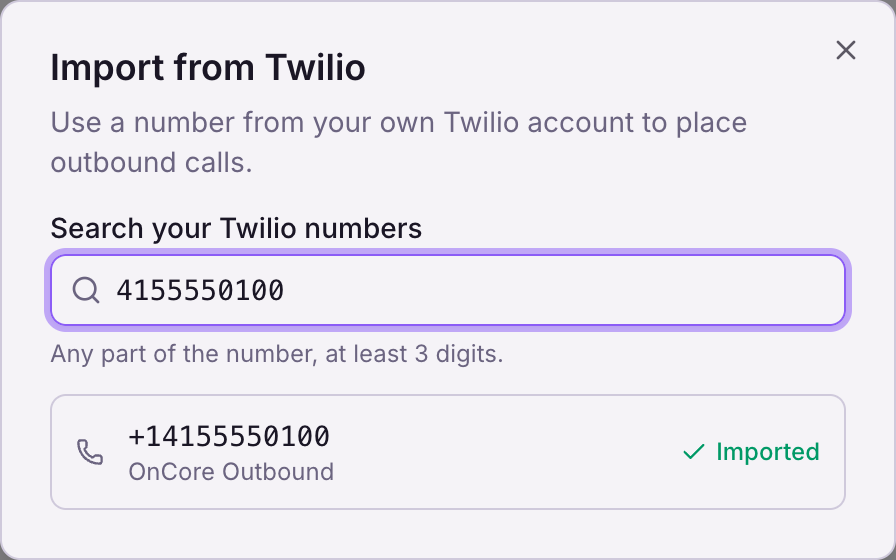
Importing answers 201 with the new phone number, or 200 with the existing one if you had already imported it. Imported numbers come back from GET /phone-numbers like any other, with imported: true. The dashboard marks them Outbound only.
In the dashboard, open Phone numbers and choose Import from Twilio. Type some digits of the number, then Import the one you want.

| Status | Code | Cause |
|---|---|---|
400 | VALIDATION_ERROR | q does not contain 3 to 15 digits, or sid is not a PN SID. |
400 | PHONE_NUMBER_NOT_VOICE_CAPABLE | The number cannot make voice calls. |
404 | RESOURCE_NOT_FOUND | The SID is not a number on your connected Twilio account. |
409 | PHONE_NUMBER_IN_USE | The number is already in use in OnCore. |
409 | TWILIO_NOT_CONNECTED | Connect Twilio first. |
409 | TWILIO_CREDENTIALS_REJECTED | Twilio rejected the stored auth token. Reconnect with the current one. |
502 | TWILIO_REQUEST_FAILED | Twilio returned an error. The message carries it. |
What an imported number can and cannot do#
Imported numbers are for outbound calls only. Inbound calls to them keep following whatever you set up on Twilio; OnCore never points them anywhere.
- They cannot be linked to an assistant. Linking one returns
400IMPORTED_NUMBER_OUTBOUND_ONLY. The same applies to SMS and WhatsApp setup on the number. - They cannot be renamed in OnCore.
PATCH /phone-numbers/{id}with anamereturns400IMPORTED_NUMBER_READ_ONLY. Rename the number in the Twilio console instead. - Removing one never releases it.
DELETE /phone-numbers/{id}on an imported number answersstatus: "removed"and only takes it out of OnCore. The number stays on your Twilio account. Import it again at any time. - OnCore does not bill for them. There is no monthly number charge from OnCore; you pay Twilio for the number as before.
Place a call#
POST /calls dials to from your imported number from, with the assistant you name doing the talking.
curl -X POST https://core-api.heysadie.ai/calls \
  -H "Authorization: ApiKey YOUR_API_KEY" \
  -H "Content-Type: application/json" \
  -H "Idempotency-Key: reminder-booking-48213" \
  -d '{
    "assistantId": "0195f1e2-0000-0000-0000-000000000000",
    "from": "+15555550100",
    "to": "+15555550123",
    "firstMessage": "Hi Maria, this is the clinic calling about your appointment tomorrow.",
    "promptVariables": { "customer_name": "Maria", "appointment_time": "10:30" },
    "customPrompts": [
      { "title": "Reason for the call", "content": "Confirm or move the appointment." }
    ],
    "metadata": { "bookingId": "48213" }
}'| Field | Type | Required | Description |
|---|---|---|---|
assistantId | UUID | Yes | The assistant that talks on the call. |
from | string | Yes | Caller ID, E.164. Must be a number you imported from your connected Twilio account. |
to | string | Yes | The number to call, E.164. Must differ from from. |
firstMessage | string | No | What the assistant says once the person answers, up to 2000 characters. Replaces the assistant's greeting and your webhook's first_message for this call. |
promptVariables | object | No | Up to 50 string values for {%key:default%} placeholders. Each key wins over the same key from your webhook. |
customPrompts | array | No | Up to 10 { title, content } prompt sections, added after the ones your webhook returns. |
metadata | object | No | Your own object, up to 8 KB serialized. Sent to your server in the assistant request. Never shown to the assistant. |
promptId | UUID | No | One of your voice prompts, used instead of the assistant's prompt for this call. Cannot be sent with prompt. |
prompt | string | No | Prompt text, up to 50000 characters, used instead of the assistant's prompt for this call. Cannot be sent with promptId. |
toolIds | UUID array | No | 1 to 50 unique ids of your tools. For this call they replace the tools linked to the assistant. Built-in tools, such as ending or transferring the call, stay. |
voicemailDetection | boolean | No | Defaults to false. Send true to hang up without greeting when voicemail answers. See Voicemail. |
Unknown fields are rejected with 400 VALIDATION_ERROR. Prompt variables and custom prompts still apply on top of a promptId or prompt. If that prompt or one of those tools is deleted before the call connects, the call uses the assistant's own.
The response is 201 with the call as placed:
{
  "success": true,
  "data": {
    "id": "0195f1e2-0000-0000-0000-000000000001",
    "status": "ringing",
    "direction": "outbound",
    "from": "+15555550100",
    "to": "+15555550123",
    "assistantId": "0195f1e2-0000-0000-0000-000000000000",
    "createdAt": "2026-10-22T14:00:00.000Z"
  },
  "metadata": { "timestamp": "2026-10-22T14:00:00.120Z", "version": "1.0", "path": "/calls" }
}
The call exists before anything is dialed, so it has an id even if nobody answers. GET /calls/{id} takes that id and returns the call with direction: "outbound" and fromNumber. The phone rings for up to 40 seconds.
| Status | Code | Cause |
|---|---|---|
400 | VALIDATION_ERROR | A field failed validation. error.details names it. |
400 | FROM_NUMBER_NOT_IMPORTED | from is not a number you imported. |
400 | TOOL_NOT_FOUND | A toolIds entry is not one of your tools. error.details.toolIds lists them. |
404 | RESOURCE_NOT_FOUND | The assistant is not in your tenant. |
404 | PROMPT_NOT_FOUND | promptId is not one of your voice prompts. |
409 | TWILIO_NOT_CONNECTED | Connect Twilio first. |
502 | OUTBOUND_DIAL_FAILED | The call could not be dialed. The call is kept with status failed. |
Voicemail#
Voicemail detection is off unless you turn it on for a call. When it is on and the person picks up, the assistant listens briefly before it greets them: about a second for a short "Hello?", up to a few seconds when the person says more. If a voicemail greeting answered, it hangs up without speaking or leaving a message, and the call ends with endedReason customer-did-not-answer, the same as a call nobody picked up. A person, a phone menu, or an answer the assistant cannot place gets the greeting as usual.
Turn it on with voicemailDetection: true, for example on calls likely to reach voicemail:
{
  "assistantId": "0195f1e2-0000-0000-0000-000000000000",
  "from": "+15555550100",
  "to": "+15555550123",
  "voicemailDetection": true
}
This setting covers only the person you call. Transfers have their own; see Transfers on outbound calls.
Retrying safely with Idempotency-Key#
Send an Idempotency-Key header (1 to 255 printable ASCII characters) that is unique to the call you mean to place, such as your own booking or task id. Keys are scoped to your tenant and stored with the call they created. If the same key arrives again, even at the same moment as the first request, only one call is dialed and the other request answers 200 with it. The body of a repeated request is not compared, so a changed body under an old key still returns the old call. A timeout or a dropped connection can then be retried without calling the person twice.
That includes a 502 OUTBOUND_DIAL_FAILED, which means OnCore could not start the dial at all: the failed call is kept under its key with status failed, so the same key returns it. Send a new key to dial again. A dial that Twilio attempted and could not connect is different: it gets a 201 and ends later with endedReason dial-failed.
From the dashboard#
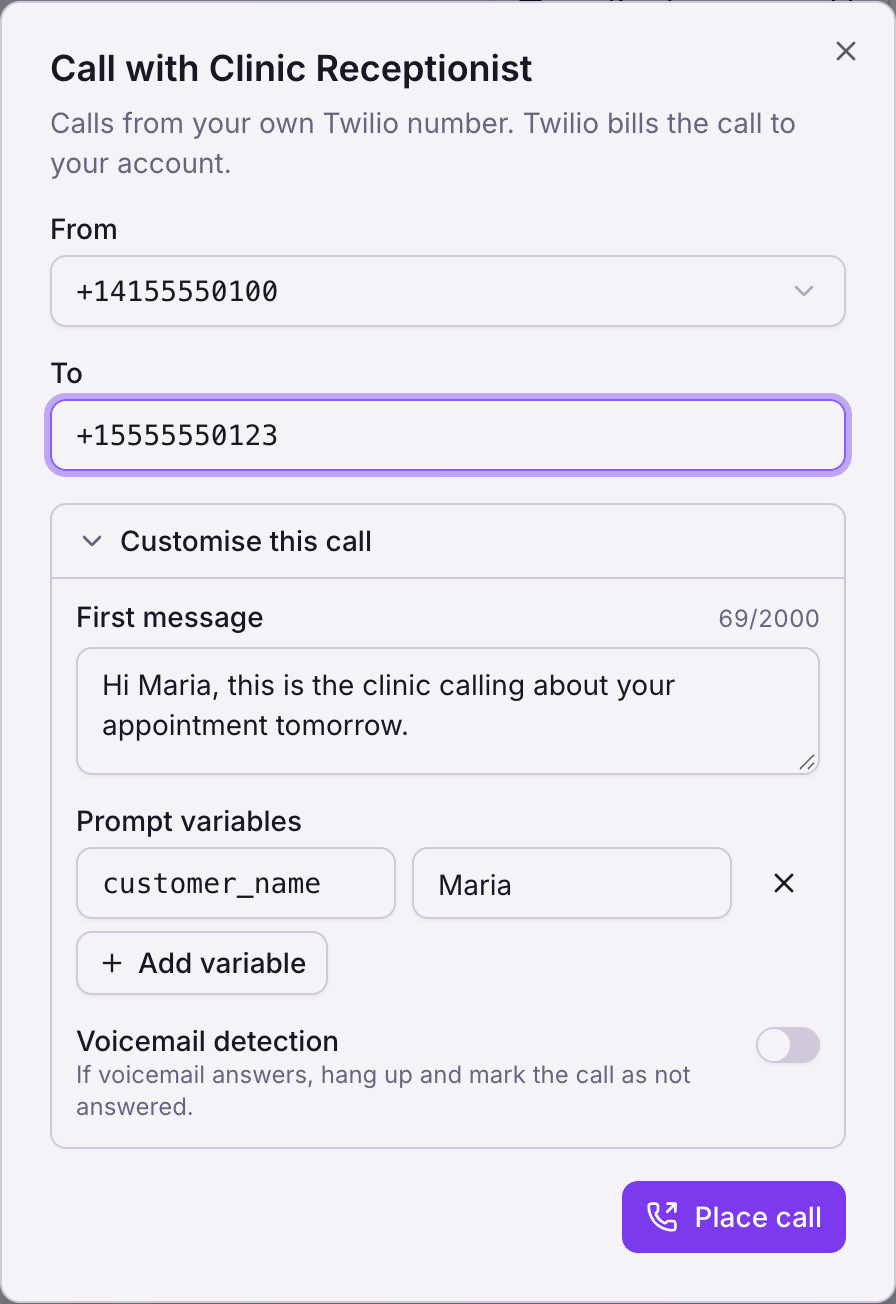
Open the assistant and choose Call outbound. Pick one of your imported numbers under From, type the number to call under To, and optionally open Customise this call to set a first message and prompt variables, or switch on Voicemail detection. The dialog then follows the call from queued to ringing, in progress and ended. Call outbound stays disabled until Twilio is connected and at least one number is imported.

Call outcomes#
A call that connects ends like an inbound one, with the same endedReason values. A call that never connects ends with one of these:
endedReason | What happened |
|---|---|
customer-did-not-answer | Nobody picked up within the ring time, the call was canceled before it connected, or voicemail answered while voicemail detection was on. |
customer-busy | The line was busy. |
dial-failed | Twilio could not connect the call, for example because the number is unreachable. |
transfer-not-answered | The person answered, the assistant transferred them, and nobody took the transfer. See Transfers on outbound calls. |
The assistant itself cannot tell busy from no answer from a failed dial. Every call that never connects ends as customer-did-not-answer at first, and that is what the end-of-call report carries. OnCore then reads the call's final status from your Twilio account after the call ends and corrects endedReason on the call to customer-busy or dial-failed where that is what happened. The correction is not sent as a webhook, and there is no published guarantee on how soon it lands; read endedReason from GET /calls/{id} later rather than straight after the call when you need to tell these apart. If Twilio's status cannot be read, the call stays customer-did-not-answer.
Transfers on outbound calls#
Cold, warm and warm-return transfers work on outbound calls. They go through the trunk on your Twilio account, which changes what the person taking the transfer sees.
| Mode | What happens | Caller ID the target sees |
|---|---|---|
| Cold | The person you called is handed to the destination and hears ringing until it answers. Transfer and forget: if nobody answers, the call ends with transfer-not-answered. | The number of the person you called. |
| Warm | The destination is dialed first, hears the whisper, and is then joined to the call. If nobody answers, the call ends with transfer-not-answered. | Your imported from number. |
| Warm-return | As warm. If nobody answers, the assistant speaks your warmReturnMessage once and the conversation carries on. | Your imported from number. |
Warm modes show your number because Twilio only lets an account place calls from numbers it owns. The whisper is the same as on inbound calls: the briefing written by whisperSummaryPromptId or the built-in one, in the language of the call, after warmWhisperDelaySeconds. On warm-return, the warmReturnMessage is what the person you called hears when nobody answers. While a transfer is in progress the assistant says its announcement and then stays silent.
Three inbound settings behave differently here:
use_assistant_numberhas no effect. Cold transfers always show the number you called, and warm ones always show your number.- Warm-return transfers detect voicemail, as on inbound calls. The assistant's existing
transferSettings.amd_detectionsetting, on unless you turned it off, applies to warm-return transfers. When voicemail answers the transfer, that leg is hung up before the whisper and the person you called returns to the assistant, which speaks yourwarmReturnMessageonce. Warm and cold transfers do not run it, the same as on inbound calls.voicemailDetectiononPOST /callsdoes not affect transfers. - Extensions are not dialed. A destination written as
+15555550123,101rings+15555550123.
See Transfers for the modes themselves and how to configure them.
What your webhooks receive#
Your server receives the same webhooks as on inbound calls, at the same URL. The assistant request for an outbound call carries two extra fields:
| Field | Description |
|---|---|
direction | "outbound". Absent on inbound calls. |
metadata | The metadata object you sent to POST /calls, or null if you sent none. |
On an outbound call customer_number is the number you called, and restaurant_number is your imported from number. Whatever your server returns in data still applies, and the per-call fields from POST /calls win over it: firstMessage replaces your first_message, promptVariables win key by key, and customPrompts are added after yours.
Limits & FAQ#
- One call per request. There is no batch or campaign endpoint. Place each call with its own request and its own
Idempotency-Key. - Imported numbers are outbound only. To have an assistant answer a number, buy one through OnCore and link it.
- Calls ring for up to 40 seconds before they end as
customer-did-not-answer. The ring time is not configurable. - The connection covers one tenant. Each tenant connects its own Twilio account and imports its own numbers.
Does the person I call see my number? Yes. Their caller ID shows the imported from number, exactly as if you had called from it on Twilio. Transfers are different; see Transfers on outbound calls.
Does the assistant leave a voicemail? By default it greets whoever answers, voicemail included, as if a person had answered. With voicemailDetection: true, it hangs up when voicemail answers and the call ends as customer-did-not-answer.
Can I use a number that is already on another OnCore tenant? No. A number can be in use in one place in OnCore at a time, and the search marks it in_use.
Who pays for the telephony? You do, through Twilio. Each call is charged to your Twilio account at your Twilio rates, and OnCore adds no telephony charge of its own.
What happens to my Twilio account when I disconnect? OnCore removes the trunk it created and nothing else. Your numbers and their settings stay as they were.
Next steps#
- Read call activity: follow an outbound call and read its transcript, summary and outcome.
- Assistant request: receive
directionand yourmetadatawhen the call starts. - Transfers: the three transfer modes and their settings.
- Calls API: the generated reference for
POST /calls.